Last year I bought a Mac Studio for music projects, mostly tracking vocals for Beata. When I read about more and more people running local LLMs, I realized I have a powerful machine that mostly just sits on a desk with power off. What if, instead of shutting it down after a music session, I just left it running and ran a local model on it?
Getting in remotely
First, I set up Tailscale. It creates a private network between my devices, so my MacBook Air can reach the Mac Studio over a stable hostname regardless of where either of us is. Then I enabled SSH on the Studio. Now I can just type ssh studio on my Air.
Picking the model
Picking a model doesn’t get easier than whichllm. You just run it and it autodetects your hardware and lists the top models from HuggingFace that fit your system.
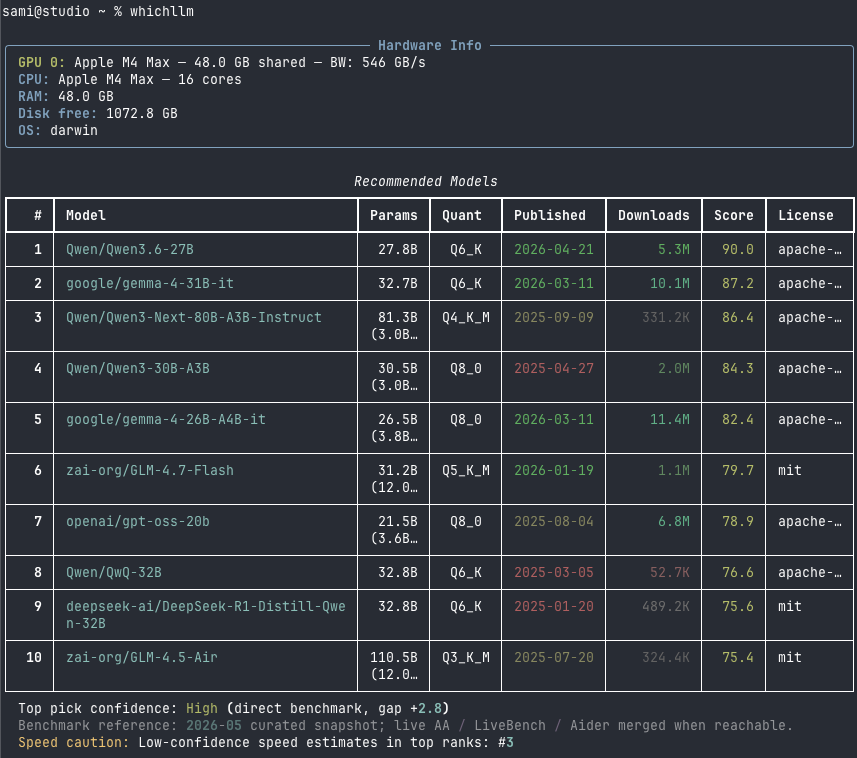
Running the model
I run the model with LM Studio. I used the GUI to download the model and to set an API token.
After that, everything is CLI so I can do it remotely. I wrote a couple of small scripts in ~/bin on the Studio to wrap the details. The start script looks roughly like this:
MODEL="qwen/qwen3.6-27b"
MODEL_IDENTIFIER="studio-llm"
PORT="4000"

lms server start --port "$PORT" --bind 0.0.0.0
lms unload --all
lms load "$MODEL" \
  --context-length 65536 \
  --gpu max \
  --identifier "$MODEL_IDENTIFIER"
Stopping it is just lms server stop. From my Air it’s ssh studio '~/bin/start-lmstudio.sh' or stop. The --bind 0.0.0.0 makes it listen on the network rather than just localhost, so my Air can reach it over Tailscale.
Stable model name
I wanted to be able to swap the underlying model without the clients needing to change their configuration so I fixed the model identifier in the start script. Instead of advertising qwen/qwen3.6-27b to clients, the server advertises studio-llm.
The idea is that everything connecting to it uses the name studio-llm. When I want to try a different model, I run lms load with a different model name and keep --identifier studio-llm. Nothing else changes. The endpoint and model name stay stable. This way the underlying model is just an implementation detail that the consumers don’t even know about.
Setting up an agent harness
There’s plenty of stuff I like to do from the command-line instead of a heavy GUI. Obviously using Claude Code is an option, but it’s heavily geared for coding and its system prompts are lengthy for a local LLM, especially if most of it is not relevant for the task at hand.
pi has a minimalistic approach and thus it’s a great fit for a general agent front end. Pointing it at LM Studio is just a config entry in ~/.pi/agent/models.json:
{
  "providers": {
    "lmstudio": {
      "baseUrl": "http://studio:4000/v1",
      "apiKey": "<from lmstudio>",
      "api": "openai-completions",
      "compat": {
        "supportsDeveloperRole": false,
        "supportsReasoningEffort": false
      },
      "models": [
        {
          "id": "studio-llm",
          "name": "Studio LLM",
          "input": ["text", "image"],
          "contextWindow": 65536,
          "cost": { "input": 0, "output": 0, "cacheRead": 0, "cacheWrite": 0 }
        }
      ]
    }
  }
}
The baseUrl uses studio as the hostname, which resolves over Tailscale. I set lmstudio/studio-llm as pi’s default model so I don’t have to pass a flag every time I open a session.
Creating a purpose-built AI agent
Whenever I want AI help with something specific, I make a new directory under ~/projects/ on my Air and just start working with pi. Once I’ve done what I want to do, I tell pi to record the process in an AGENTS.md. From that point on, every time I open pi in that directory it reads the file and is immediately ready to continue.
The result is a collection of purpose-built agents sitting on disk, each shaped to a specific job. The data stays on my own machines unless I deliberately switch to a cloud model (which I sometimes do when I want to use a bigger model), and the local model runs on the Studio rather than clogging up my laptop.